> ## Documentation Index
> Fetch the complete documentation index at: https://developers.octaviatech.app/llms.txt
> Use this file to discover all available pages before exploring further.
# API Keys
> Create and manage API keys for Octavia AI CMS.
API keys let your apps call **AI CMS** securely. Keys are scoped to your **team** and **service** and can be configured with roles, expiry, and status controls.
Keep keys secret and prefer server-side usage. You can edit, disable/enable,
or revoke a key at any time.
***
## Create an API key
Follow these steps in the Octavia dashboard. (Replace the screenshots with your own — two images are expected here.)
Go to Dashboard → Settings → API Keys and click New API Key.
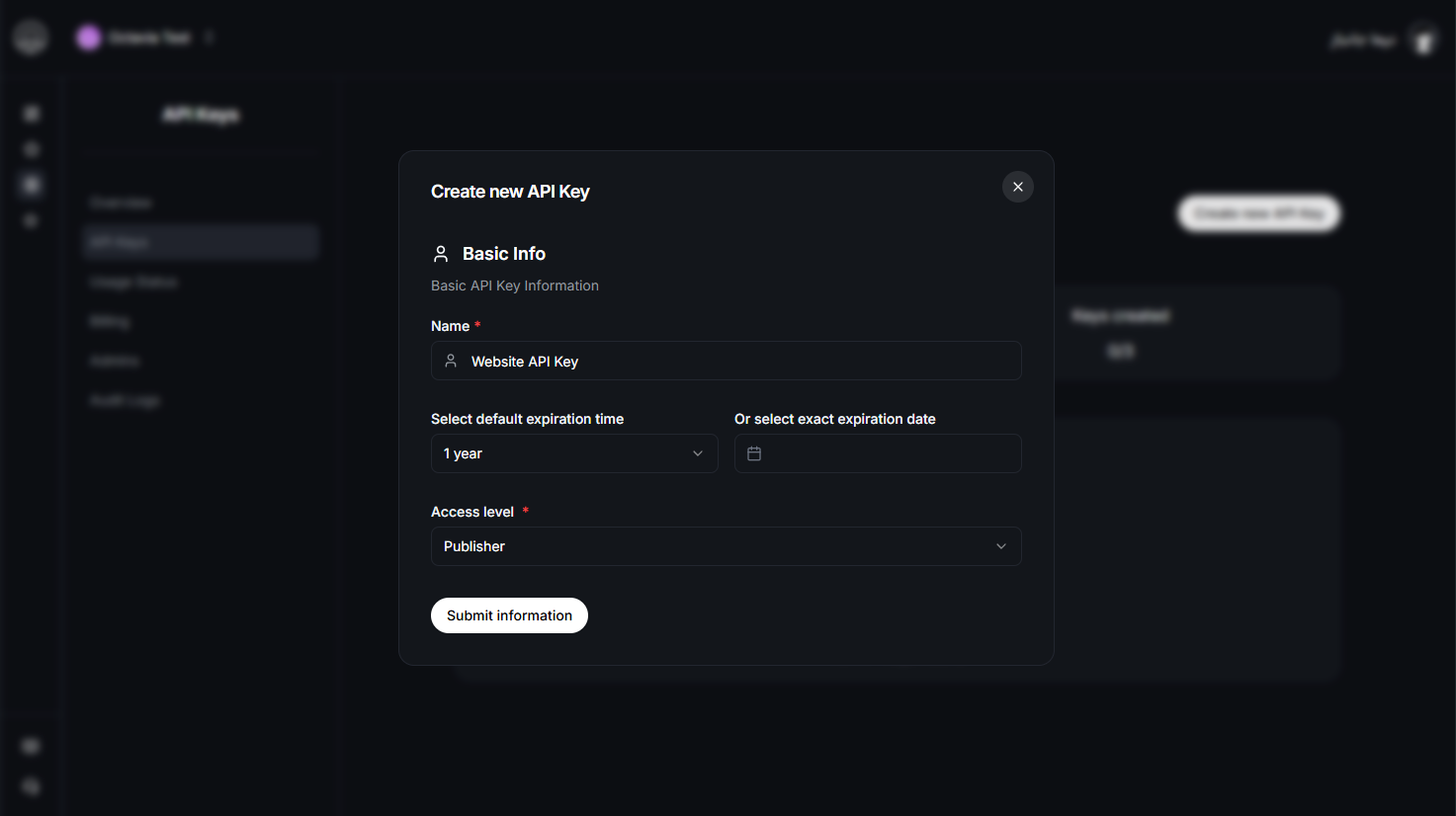
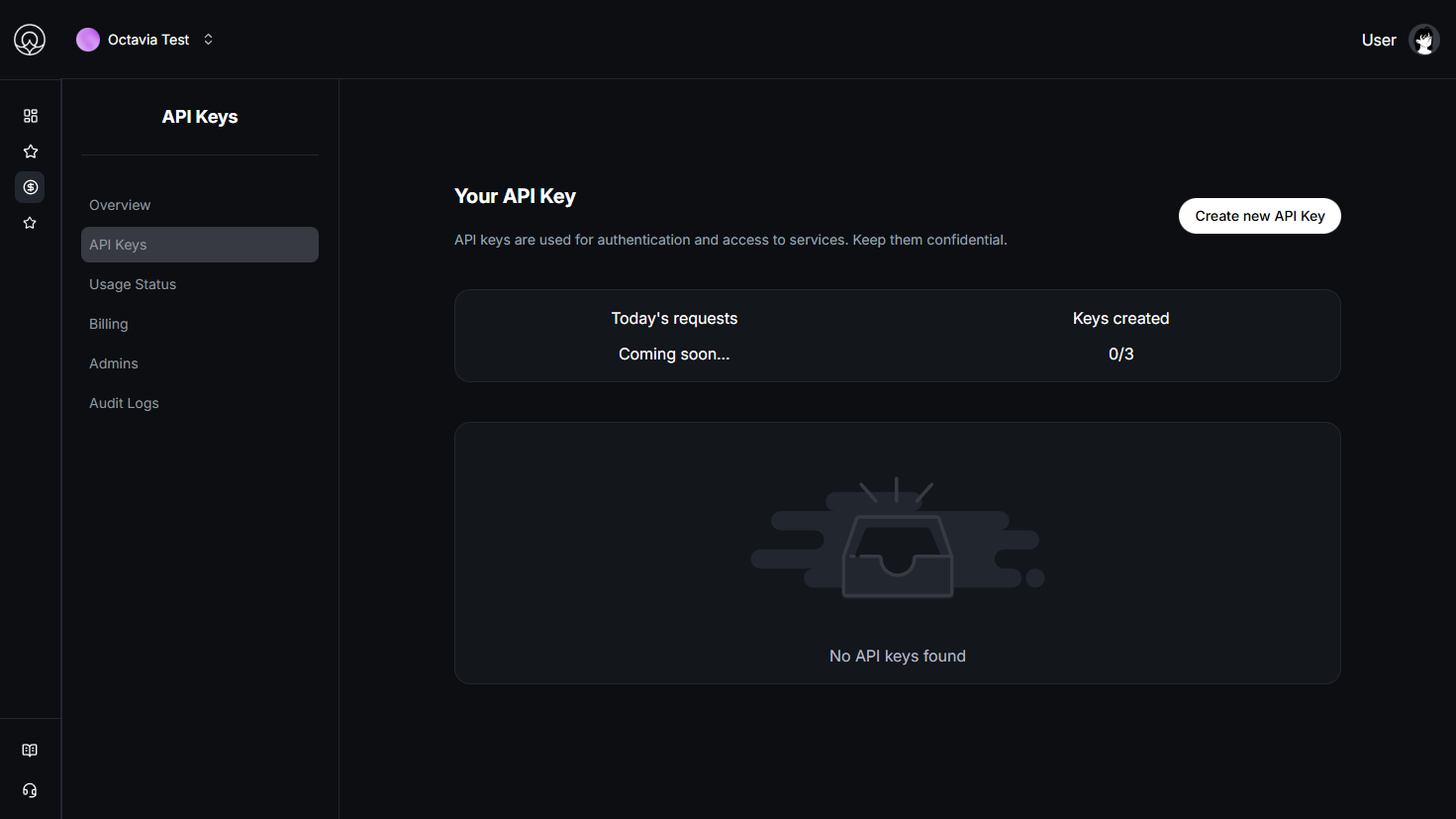 Give the key a clear name (e.g., cms-backend-prod), choose AI CMS as the service scope, assign a Role, and set Expiration:
- Expiration: either a specific end date or lifetime (no expiry).
- Status: you can toggle a key Active/Inactive anytime after creation.
Click Create and copy the key once — it’s shown only at creation time.
 You can edit a key’s role, change its{" "}
expiration (switch between date-bound and lifetime), or{" "}
disable/enable it later from the same page.
***
## Roles & permissions (AI CMS)
Choose the smallest role that meets your use case.
If your backend services require unrestricted access, use **Super Admin**. For public websites and read-only pages, use **Read-only**.
| **Role** | **Intended Use** | **CMS Access (Summary)** |
| ------------------------------------- | ---------------------------------------------------- | ---------------------------------------------------------------------------------------------------------------------------------------------------------------------------------------------------------- |
| **Super Admin** | Platform owners / unrestricted backend systems | **Unlimited access.** Full control over all CMS resources, users, settings, billing, API keys, and administrative actions. Recommended only for trusted backend integrations that require complete access. |
| **Admin** | Team or project administrators | Manage articles, media, categories, tags, and translations. Can publish/unpublish content and manage team members, but cannot modify billing or API keys unless explicitly granted. |
| **Managing Editor (Editor-in-Chief)** | Editorial leads overseeing content strategy | Approve and publish articles, oversee editorial workflows, and manage categories and translations. Cannot modify team or billing settings. |
| **Publisher** | Publishing and release managers | Handle publishing, scheduling, and visibility of content. Can manage release timelines and locales but cannot alter user or team settings. |
| **Editor** | Reviewers and content editors | Create, edit, and localize articles; review submissions; manage media assets. Cannot publish or access administrative settings. |
| **Writer** | Authors and contributors | Create and edit their own drafts, upload media, and submit content for editorial review. Cannot publish or delete articles. |
| **Read-only** | Public websites, caching layers, and analytics tools | **View-only access.** Can read published articles, media, categories, and translations, but has **no write or modification permissions**. |
• **Super Admin** is recommended only when your backend integration explicitly
needs full, unrestricted control.
• For public websites and CDN/cache fetches, prefer **Read-only**.
***
## Managing keys
* **Rotate & edit**: Rename keys, change roles, update expiration (date ↔ lifetime), and flip **Active/Inactive** status anytime.
* **Revoke**: Permanently delete a key to invalidate it immediately across all clients.
* **Audit**: Use the dashboard to review last-used timestamps and quickly identify unused keys.
***
## Related guides
Header format and auth requirements for AI CMS.
Endpoint root for all AI CMS requests.
You can edit a key’s role, change its{" "}
expiration (switch between date-bound and lifetime), or{" "}
disable/enable it later from the same page.
***
## Roles & permissions (AI CMS)
Choose the smallest role that meets your use case.
If your backend services require unrestricted access, use **Super Admin**. For public websites and read-only pages, use **Read-only**.
| **Role** | **Intended Use** | **CMS Access (Summary)** |
| ------------------------------------- | ---------------------------------------------------- | ---------------------------------------------------------------------------------------------------------------------------------------------------------------------------------------------------------- |
| **Super Admin** | Platform owners / unrestricted backend systems | **Unlimited access.** Full control over all CMS resources, users, settings, billing, API keys, and administrative actions. Recommended only for trusted backend integrations that require complete access. |
| **Admin** | Team or project administrators | Manage articles, media, categories, tags, and translations. Can publish/unpublish content and manage team members, but cannot modify billing or API keys unless explicitly granted. |
| **Managing Editor (Editor-in-Chief)** | Editorial leads overseeing content strategy | Approve and publish articles, oversee editorial workflows, and manage categories and translations. Cannot modify team or billing settings. |
| **Publisher** | Publishing and release managers | Handle publishing, scheduling, and visibility of content. Can manage release timelines and locales but cannot alter user or team settings. |
| **Editor** | Reviewers and content editors | Create, edit, and localize articles; review submissions; manage media assets. Cannot publish or access administrative settings. |
| **Writer** | Authors and contributors | Create and edit their own drafts, upload media, and submit content for editorial review. Cannot publish or delete articles. |
| **Read-only** | Public websites, caching layers, and analytics tools | **View-only access.** Can read published articles, media, categories, and translations, but has **no write or modification permissions**. |
• **Super Admin** is recommended only when your backend integration explicitly
needs full, unrestricted control.
• For public websites and CDN/cache fetches, prefer **Read-only**.
***
## Managing keys
* **Rotate & edit**: Rename keys, change roles, update expiration (date ↔ lifetime), and flip **Active/Inactive** status anytime.
* **Revoke**: Permanently delete a key to invalidate it immediately across all clients.
* **Audit**: Use the dashboard to review last-used timestamps and quickly identify unused keys.
***
## Related guides
Header format and auth requirements for AI CMS.
Endpoint root for all AI CMS requests.